Quick answer
To convert a scanned PDF to editable text, run OCR on the file, export the result to Word or Google Docs, then manually review the formatting. OCR works best on clean, straight scans with printed text. If the scan is blurry, crooked, full of tables, or packed with images, expect cleanup.
Why scanned PDFs are hard to edit
When you scan a paper document, your scanner or phone usually creates an image-based PDF. The page looks normal to you, but to the computer it is closer to a photo than a Word document.
OCR, short for Optical Character Recognition, looks at that image and tries to recognize letters, words, line breaks, and sometimes layout. Good OCR can make a scan searchable and editable. Bad input still produces bad output.
The best workflow for clean OCR
Start with the best scan you can get
Use bright light, keep the page flat, and avoid shadows. If you are scanning a manual, do not scan two open pages as one image unless you absolutely have to.
Run OCR before editing
Use Google Drive, Adobe Acrobat, a PDF to Word tool, or another OCR app. The goal is to create selectable text from the image.
Export to an editable format
If you need to rewrite or heavily edit the document, export to DOCX or open the OCR result in Google Docs. If you only need search, keep it as a searchable PDF.
Fix formatting by hand
Headings, tables, page numbers, footnotes, and columns often need cleanup. This is normal, especially with manuals and older scans.
Free method: Google Drive OCR
Google Drive is the fastest free option for many people. Upload the scanned PDF or image, right click the file, choose Open with Google Docs, and Google will try to extract the text into a document.
This is excellent for simple pages, letters, receipts, and short printed documents. For best results, use a sharp scan, keep the page right-side up, and keep the file small. It is not perfect for manuals with tables, columns, diagrams, footnotes, or unusual spacing.
Google’s own help page notes that some formatting transfers better than others, while lists, tables, columns, footnotes, and endnotes are less likely to be detected correctly: Convert PDF and photo files to text.
Adobe Acrobat OCR: better for scanned PDFs
Adobe Acrobat is built for PDFs, so it is often better when you want to keep the file as a PDF but make the text searchable or editable. Acrobat can recognize text in scanned PDF pages and add a text layer over the image.
For long files, be patient. A 300-page manual can take time. If every page has images, diagrams, or dense layout, the OCR pass may be slow and the editable version may still need cleanup.
Adobe’s help center explains that scanned PDFs contain image data until OCR converts the image text into selectable and searchable text: Recognize text in scanned documents.
How to OCR an entire scanned PDF, not just one page
If you open a scanned PDF and start editing, some PDF apps process the page you are viewing first. That can feel like the software is converting the file page by page as you scroll.
For a long document, run OCR intentionally before editing. In Acrobat, use All tools > Scan & OCR, choose the file or page range, confirm the recognition settings, and let the app process the document. For multiple PDFs, use the multiple-file OCR option instead of opening each file manually.
Expect this to take time. If the document has hundreds of pages, dense images, or technical diagrams, the app may be busy until the OCR pass finishes. Save a backup first so you can return to the original scan if the output is messy.
Why the formatting gets butchered
This is the problem most people run into. OCR can recognize the words, but it has to guess the structure of the page. A clean single-column page is easy. A manual with side notes, tables, images, page numbers, headers, and uneven scans is much harder.
If your converted Word document looks messy, it does not always mean the OCR tool failed. Sometimes it means the original page layout was too complex to rebuild automatically.
How to avoid broken formatting
- Scan pages straight, not at an angle.
- Use 300 DPI or the highest quality scan available.
- Avoid shadows, fingers, page curves, and dark backgrounds.
- Scan one page at a time instead of double-page spreads.
- Convert to text first, then rebuild tables and headings manually if needed.
- For manuals, keep the original PDF as a visual reference while editing the Word file.
Which OCR method should you use?
| Method | Best for |
|---|---|
| Google Drive and Google Docs | Free OCR on short, simple scans |
| Adobe Acrobat OCR | Searchable PDFs and scanned documents you need to review |
| PDF to Word converter with OCR | Turning scanned PDFs into DOCX files |
| Manual typing | Very short documents or terrible scans |
When OCR is not worth it
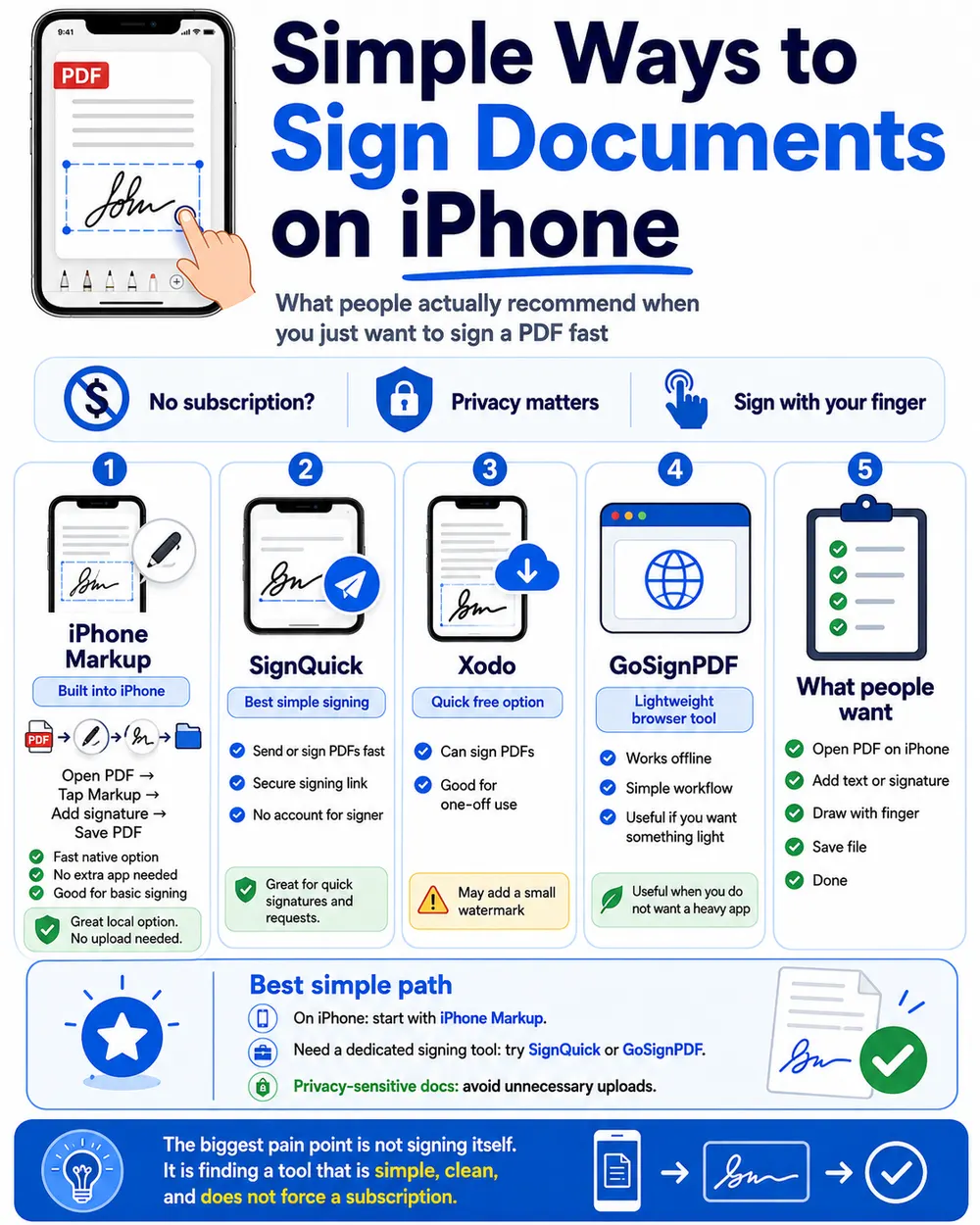
If you only need to sign the document, send it to someone for signature, or keep a signed copy, you may not need editable text at all. Converting a scan to Word can create extra work for no reason.
In that case, keep the PDF as a PDF. Add the signature field, send a secure signing link, and store the signed file. That is usually cleaner than trying to rebuild the whole document as editable text.
The honest rule
Use OCR when you need to copy, search, translate, or rewrite text. Do not use OCR just because the document is scanned. If the goal is to approve or sign the document, a signing workflow is often faster and safer.
Where SignQuick fits
SignQuick is not an OCR editor. It is for the moment when you already have a PDF and need someone to sign it without printing, scanning, or creating an account.
Upload the scanned PDF, place the signature field, and send a link. The signer opens it in the browser, signs, and you keep a record of the signed document. If all you need is signature approval, that is usually simpler than converting the PDF into Word.
Frequently asked questions
Can I scan a document and then edit the text?
Yes. First scan the document as a PDF or image, then use OCR to recognize the words. After that, export the result to Word, Google Docs, or another editable format.
Can I convert a scanned PDF to editable text?
Yes. You need OCR software. OCR reads the image of the text inside the scanned PDF and turns it into selectable, searchable, and sometimes editable text.
How do I edit text in a scanned document for free?
A simple free option is Google Drive OCR. Upload the scanned PDF or image, open it with Google Docs, then edit the extracted text. You will probably need to clean up the layout manually.
Why does OCR ruin formatting?
OCR is trying to guess the structure of a page from an image. Simple paragraphs usually convert well, but columns, tables, handwritten notes, footnotes, diagrams, and old scans can break.
Is Google Drive OCR free?
Yes. You can upload a PDF or image to Google Drive, open it with Google Docs, and Google will attempt to extract the text. Formatting may not transfer perfectly.
Can OCR read handwriting?
Sometimes, but printed text is much more reliable. Clear block handwriting may work. Cursive, messy notes, and low-quality scans often need manual correction.
Do I need OCR just to sign a scanned PDF?
No. If your goal is only to sign or send the scanned PDF for signature, you can keep it as a PDF and use a signing tool instead of converting the whole document to editable text.
Need to sign the scanned PDF instead?
Upload your PDF to SignQuick, place the signature field, and send a signing link. No OCR needed if the document only needs approval.
Try SignQuick