Quick answer
To scan your own signature, sign your name on plain white paper with black ink, scan it with your phone using Notes, Files, Google Drive, or a scanner app, crop it tightly, then save it as a PNG or PDF. If you want to place it on official documents, use a PDF editor or a signing tool that records the signing event.
Before you scan: get the original right
Most bad scanned signatures are not caused by the app. They are caused by the first photo: lined paper, weak ink, shadows, or a signature taken from too far away. Spend one minute preparing the paper and the result will look much more professional.
Sign on plain white paper
Use a clean sheet with no lines, no texture, and no colored background. A smooth white page makes it much easier to crop the signature or remove the background later.
Use dark ink
Black ink is usually best. Dark blue also works, but avoid pale pens, pencil, or anything that looks grey in a photo.
Scan in bright, even light
Place the paper near a window or under a lamp, but keep your hand and phone from casting a shadow over the signature.
Crop tightly and save a copy
Keep the signature centered, crop away empty paper, and save a clean version before placing it into documents.
Method 1: scan your signature on iPhone
If you use an iPhone, the easiest built-in method is the Notes app. Apple includes document scanning inside Notes, and the same flow can also be used to add a signature to a scanned document.
- Write your signature on plain white paper.
- Open Notes and create a new note.
- Tap the attachment/camera button, then choose Scan Documents.
- Point the camera at the paper and let iPhone detect the page, or capture manually.
- Drag the corners so only the paper is included, then keep the scan.
- Save the scan, then crop closer if you only need the signature area.
Apple’s own guide explains the Notes scan flow and the Markup signature option here: How to scan documents on your iPhone or iPad.
Method 2: add a signature to a PDF on iPhone
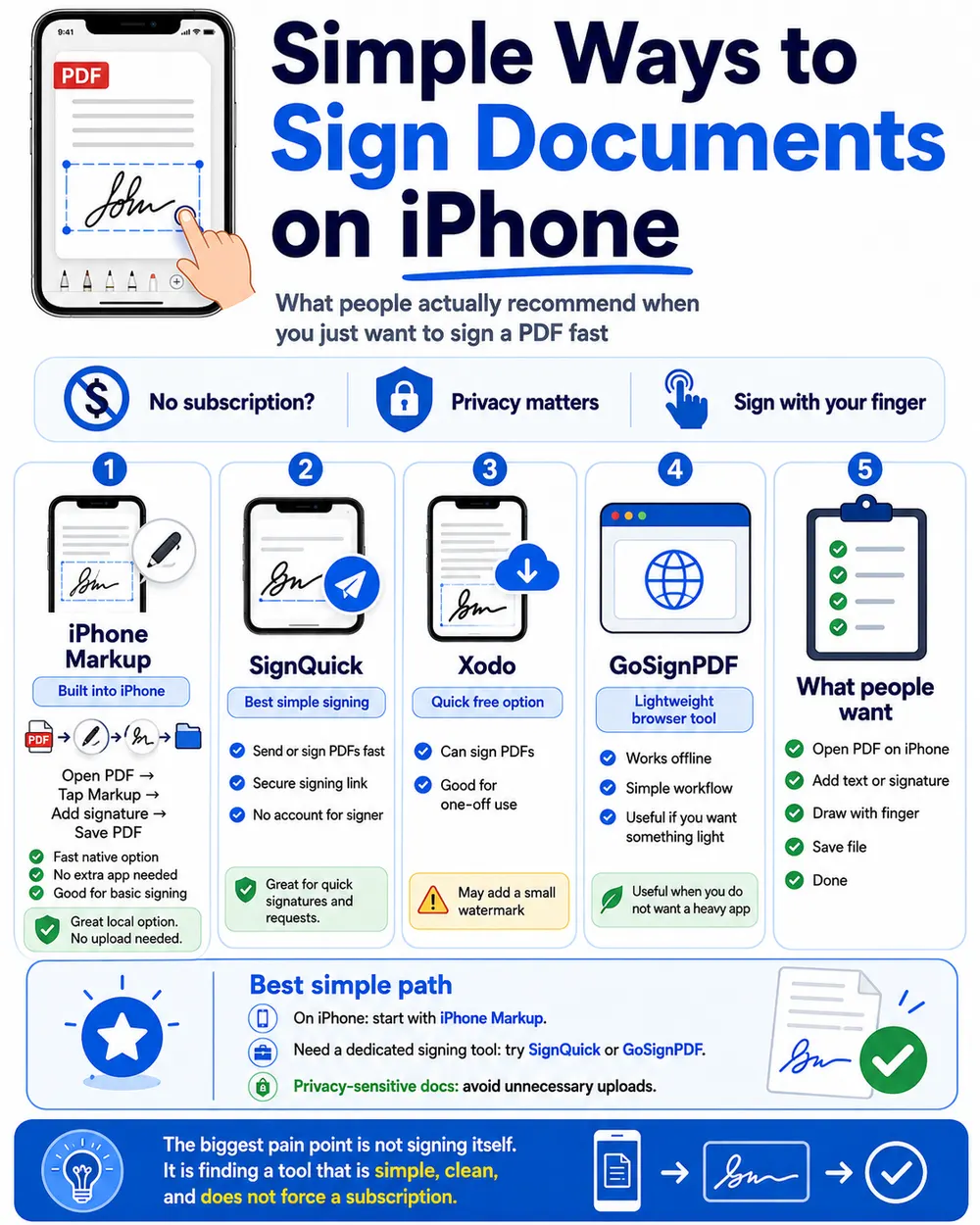
If your actual goal is to sign a PDF on your iPhone, you may not need to scan a separate signature image at all. Open the PDF in Files, tap Markup, tap the plus button, and choose Signature. You can reuse a saved signature or draw a new one with your finger.
This is good for simple internal forms, school documents, and quick approvals. Just keep in mind that a signature placed with Markup is not the same thing as a full e-signature workflow with audit trail, IP address, timestamp, and document hash.
Method 3: scan your signature with Google Drive
Android users can use Google Drive as a simple built-in scanner. It works especially well if you want the scanned file stored in the cloud automatically.
- Open the Google Drive app.
- Tap the camera or scan button.
- Point your phone at the signature page and take the scan.
- Use crop and color adjustment to clean up the scan.
- Save it as PDF or JPG.
Google’s official Drive help page covers the scan, crop, filter, clean, and save steps here: Scan documents with Google Drive.
Which method should you use?
iPhone Notes
Best if you want the fastest built-in option on iPhone.
- Open Notes and create a new note.
- Tap the attachment/camera button and choose Scan Documents.
- Point the camera at the paper, adjust the corners, and keep the scan.
- Open the scanned page, use Markup, then add or draw your signature if needed.
Files or Markup on iPhone
Best when the document is already a PDF on your iPhone.
- Open the PDF in Files.
- Tap the Markup icon.
- Tap the plus button and choose Signature.
- Resize and place the signature where it belongs.
Google Drive on Android
Best if you want a free scanner that saves directly to cloud storage.
- Open Google Drive.
- Tap the camera/scan option.
- Capture the signature page.
- Crop, adjust color, and save as PDF or JPG.
A dedicated scanner app
Best when you want better contrast, cleaner cropping, or batch scanning.
- Scan the signature page.
- Use black-and-white or document mode.
- Increase contrast until the signature is clear.
- Export as PNG, JPG, or PDF depending on where you will use it.
Should you save it as PNG, JPG, or PDF?
For a reusable signature image, PNG is usually the best format. It stays sharp and can support a transparent background. JPG is fine for a quick scan, but it may add compression artifacts around the ink. PDF is useful if you scanned the whole paper and want to keep it as a document.
| Format | Use it when |
|---|---|
| PNG | You want a clean reusable signature, ideally with transparent background. |
| JPG | You need a quick image and do not care about transparency. |
| You scanned the whole page or want to keep a document copy. |
How to remove the white background
A scanned signature often has a white rectangle around it. That looks fine on a white page, but it looks obvious on colored forms or scanned contracts. If you want the signature to blend naturally, remove the background and save the result as a transparent PNG.
The cleanest approach is to start with black ink, increase contrast, remove the paper background, then check the signature on both white and slightly grey backgrounds before using it in documents.
How to add your scanned signature to a document
In Word, Google Docs, Pages, or a PDF editor, insert the image and place it on the signature line. Resize it until it looks natural. A scanned signature that is too large immediately looks pasted on, so keep it close to the size you would write by hand.
If the document needs stronger proof, use an e-signature workflow instead of simply placing an image. That is where tools like SignQuick help: the signer receives a secure link, signs in the browser, and the system stores proof of the signing event.
Scanned signature vs electronic signature
A scanned signature is an image of your handwritten signature. An electronic signature workflow is a signing process. That difference matters.
A pasted image may be enough for informal paperwork, but it usually does not prove who signed, when they signed, or whether the document changed afterwards. A proper e-signature flow can record things like timestamp, signer details, IP address, and a document hash.
Common mistakes to avoid
- Using lined paper. Lines are hard to remove cleanly and can show up behind the signature.
- Taking a photo at an angle. Keep the phone parallel to the paper to avoid distortion.
- Leaving too much empty space. Crop close to the signature before inserting it into a document.
- Saving only one copy. Keep an original scan and a cleaned version so you can redo the edit later.
- Using a scanned image for documents that need verification. For client contracts, quotes, or approvals, send a signing link instead.
FAQ
Can I scan my signature for free?
Yes. iPhone Notes, iPhone Files, and Google Drive can scan documents without a paid scanner app.
Is a scanned signature legally binding?
It depends on the document, the country, and the context. A scanned signature is only an image. For important agreements, use an e-signature system that records evidence of the signing process.
Can I scan my signature with my iPhone camera?
Yes. The Notes app can scan documents, and Markup can add a saved or newly drawn signature to a PDF.
What is the best file type for a scanned signature?
Use PNG if you want to reuse the signature often, especially if you remove the background. Use PDF if you want to keep the whole scanned page.
Need more than a pasted signature image?
SignQuick lets you upload a document, send a signing link, and keep a record of the signed file without asking the signer to install an app.
Try SignQuick