1. SignQuick
Best for contractsNo app for the signer · Works in any browser · Full legal audit trail
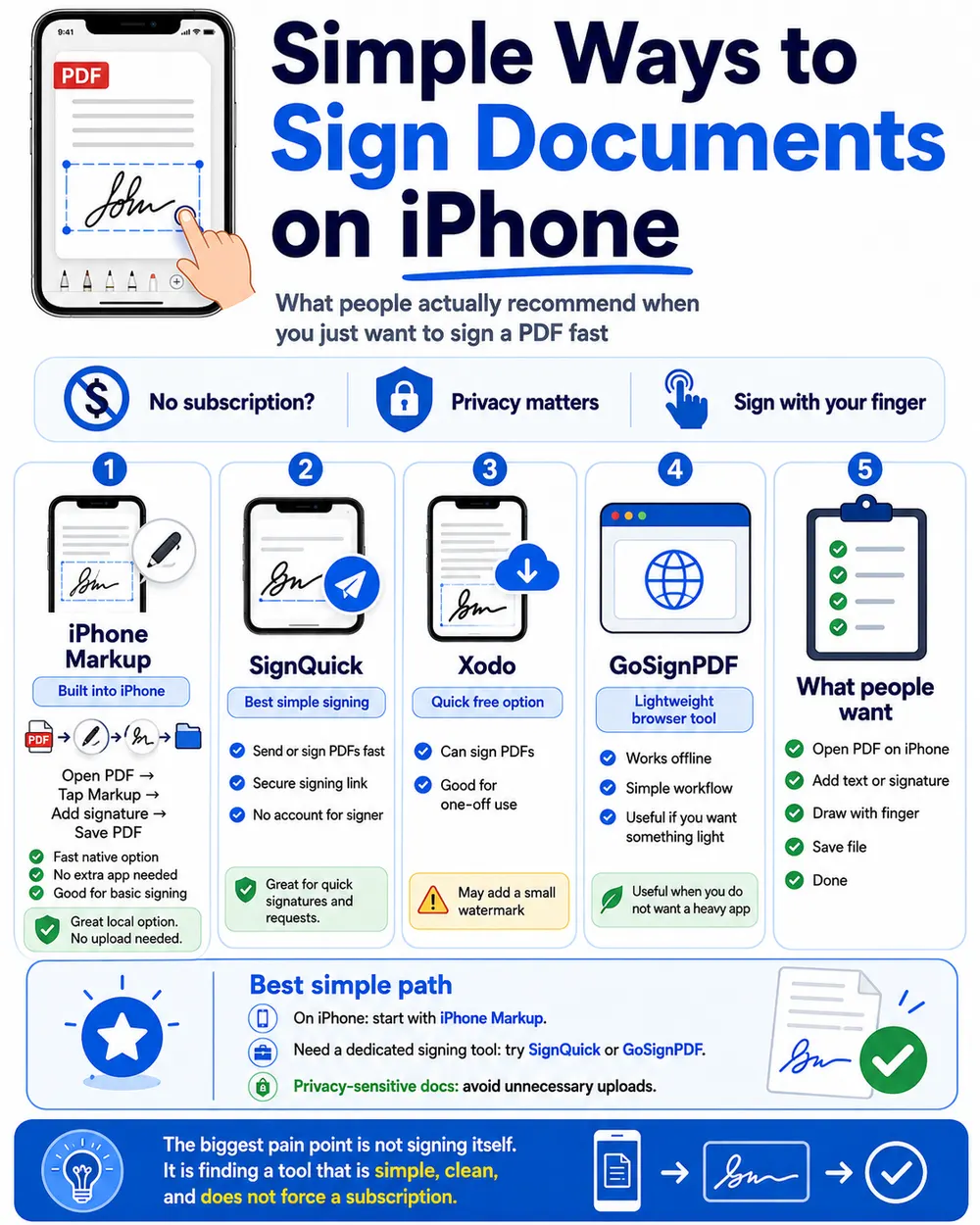
If the document needs to hold up later — a service contract, a quote the client has accepted, an agreement with a supplier — SignQuick is the most direct way to get it signed from an iPhone. You export the Word file to PDF, send a link, and the other person signs from their own browser. No app to download, no account to create.
The part that matters happens after the signature: SignQuick automatically records an exact timestamp, the signer's IP address, and a SHA-256 hash of the document. That's the difference between "someone drew a signature" and a piece of evidence you could actually point to if the agreement were ever disputed.
Export the Word file to PDF
On your iPhone (or on a Mac), go to File → Export → Create PDF. It takes a few seconds and keeps your formatting intact.
Open SignQuick and create a signature request
Tap the + button, select the PDF you just saved, and enter the signer's name and email address or phone number.
Send the link
SignQuick generates a unique link for that request. Share it via WhatsApp, email, or iMessage — whatever you'd normally use with that person.
The signer opens it and signs from their iPhone
They open the link in Safari (or any browser), draw their signature with a finger, and tap "Sign and accept". You both get the signed copy instantly.
2. The built-in Markup tool
Free · Already on your iPhone · No audit trail
Every iPhone has a quick way to drop a signature onto a document: Markup. Before you use it, convert the Word file to PDF — it keeps your formatting intact, lets you set the document as view-only, and is easier to mark up and share than a .docx file.
Once you have the PDF, signing it takes a few taps:
- 1Attach the PDF to an email, or open it from the Files app.
- 2Tap the attachment, then tap the Markup icon (the pen tip) in the preview.
- 3On the Markup toolbar, tap the "+" button and select "Signature".
- 4The first time, sign with your finger on the screen. After that, your saved signature is ready to reuse.
- 5Drag the signature into the right spot on the document.
- 6Tap "Done" in the top corner to save your changes.
3. Adobe Acrobat Sign
Requires the Acrobat Sign app · Paid plans
Acrobat Sign is Adobe's e-signature app for iOS, and it works well if documents are routed to you through Adobe's ecosystem already. Documents waiting for your signature show up directly in the app, and you fill in fields and sign without leaving it.
- 1Open the Acrobat Sign app on your iPhone and find the document — it usually appears in the "Waiting For You" area.
- 2Tap the pen icon to start, and fill in any required fields on the document.
- 3Tap the signature field. A Signature Preview opens so you can check it or redo it.
- 4Tap "Apply" to confirm the signature once you're happy with it.
- 5Tap "Finish" to complete the document and share it with anyone who needs a copy.
4. Docusign eSignature
Free trial, then subscription · Works from the Mail app
Docusign's mobile app brings the same signing flow you'd get on desktop to iOS. If you're the one signing a document someone else sent through Docusign, you can do it straight from the Mail app without leaving your inbox.
- 1Sign up for a Docusign eSignature free trial.
- 2Open the Word document as an email attachment in the Mail app.
- 3Tap the toolbox icon, then tap "Signature" in the Markup preview.
- 4Sign with your finger on the touchscreen, then tap "Done".
- 5Drag the signature to where it belongs on the document, then tap "Done" again.
- 6Reply to the sender's email — they'll automatically receive your signed attachment.
Which method should you use?
| Method | Cost | Legal audit trail |
|---|---|---|
| SignQuick★ #1 | From $9.99/mo | Yes — timestamp, IP, SHA-256 |
| iOS Markup | Free | No |
| Adobe Acrobat Sign | Free trial, then paid | Yes |
| Docusign eSignature | Free trial, then paid | Yes |
Pick based on the document
A client contract, quote, or service agreement
SignQuick — a verifiable record without asking the client to install anything.
A quick personal form with no legal weight
iOS Markup is enough. It's free and already on your phone.
Your company already runs on Adobe tools
Adobe Acrobat Sign fits directly into that workflow.
The other party already works inside Docusign
Use the Docusign eSignature app to keep the process in one place.
Frequently asked questions
Can I sign a .docx file directly on my iPhone, or do I need to convert it to PDF first?
Most signing methods, including SignQuick, work with PDFs. Converting from Word takes seconds: File → Export → Create PDF. Once converted, signing takes under two minutes.
Is a signature drawn with iOS Markup legally binding?
It can count as a simple electronic signature, but Markup doesn't record a timestamp, an IP address, or any evidence of who signed and when. For anything beyond low-stakes documents, a tool that generates an audit trail — like SignQuick — gives you something to point to if there's ever a dispute.
Does the person I send the document to need to install an app to sign it?
With SignQuick, no — they open a link in any browser and sign from there. With Adobe Acrobat Sign and Docusign, they may be prompted to use the app or create an account, depending on how the request is set up.
What does SignQuick record that a Markup or photo signature doesn't?
Every signature made through SignQuick is stored with an exact timestamp, the signer's IP address, and a SHA-256 hash of the document, which certifies it hasn't been altered since signing. That's the evidence that turns "I signed it" into something you can actually prove.